This wide- and large- screen layout
may not work quite right without Javascript.
Maybe enable Javascript, then try again.
Sharing One Monitor
(Video & PC)
I wanted my new DVD/Blu‑ray Player to use the same widescreen flat monitor that I already used for my PC. (I don't have a TV, and I didn't want to get one. I don't have space for a larger screen. And I wanted to spend as little money as possible.)
Exactly how one can share a monitor between a Blu‑ray Player and a Personal Computer varies from one particular piece of equipment to the next; there's no completely generic answer. Nevertheless with most monitors manufactured in the last few years one option stands out. That option (which fit my specific case too) is what I will describe here.
Many newer flatscreen monitors have multiple inputs, and switch between them with nothing more than the push of a button. Flatscreen TVs often provide a computer input too, and make quite satisfactory PC monitors. Monitors specifically for Personal Computers usually have both a VGA and an HDMI input, since HDMI is used by some computers. So sharing one of these monitors is straightforward. (If your existing monitor does not have a way to switch between inputs, see the archived older version of this document.)
With current DVD/Blu‑ray Players and current monitors, setup is straightforward. And distinctions between PAL and NTSC video formats or between Progressive and Interlaced video signals are no longer central. Current players typically upscale all material to the 1080p format that any monitor with an HDMI input will handle automatically. Monitors include substantially more logic than they used to, making connections much simpler than they used to be.
Type of scan is what the letter on the end of resolution specifications is about: for example 1080p is progressive scan, while 1080i is interlaced scan. As a general rule, computers, computer monitors, and upscaled DVD/Blu‑ray signals are always progressive scan. (Non-upscaled signals are likely compatible with broadcast TV, which in this country uses NTSC format and is interlaced, so it's likely what the DVD/Blu‑ray world calls 480i. But you probably won't run into this ...and most current monitors can display it correctly anyway.)
Given a new signal, most current monitors go blank while they examine the signal and make sure they're adapting to it correctly, then blink back on. So when you switch from PC to Video (or Video to PC), expect the monitor to go blank for a second. If the PC has turned off its video signal to enter some sort of sleep/hibernate mode, this exacerbates the issue. You may need to switch the monitor to your Personal Computer, then cause some keyboard or mouse activity to wake it up, then wait for the monitor to adapt to the signal, and only then see something other than a blank screen.
Here's an overview picture of how I wanted to think of my system:
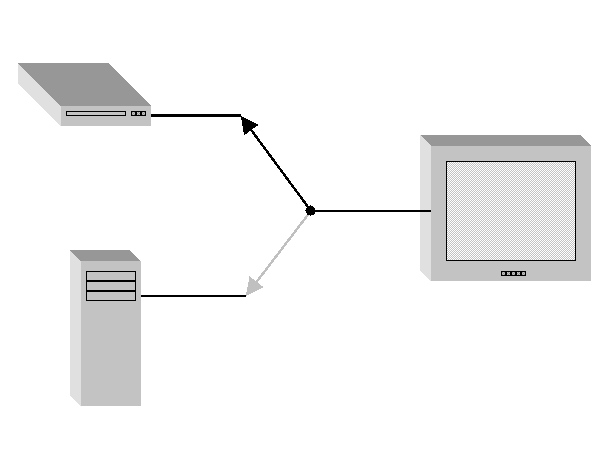
To reach my goal, I simply connected the standard cables - I didn't need to either purchase or kluge anything at all.
DVD/Blu‑ray Player
Simply connect the HDMI output on the back of the DVD/Blu‑ray player to the HDMI input on the monitor. If an HDMI cable came with the DVD/Blu‑ray player, use it. As is often the case with digital signals, there's no in-between about HDMI signals - they'll either display perfectly or they won't display at all. So -unlike in the old analog world- there's absolutely no advantage to a better quality cable.
Audio may be tricker than video. The desired audio signal is included with the video signal on the HDMI cable (but in a digital format not suitable for direct use by analog equipment). So if your monitor has speakers or a headphone jack or an audio out connection, you can simply use it. But in many cases there'll be no way to access the audio signal that was on the HDMI cable. You may instead need to access a copy of the audio signal. Look for additional connectors on the back of your DVD/Blu‑ray player that make the audio signal available.
Given the relatively small size of a typical PC monitor (17", 19", 21", etc.) the upconverting of the video signal by the DVD/Blu‑ray Player will probably not result in a visibly better picture. What it will do though is make connections and compatibility simpler.
Also, PC monitors will typically not display Closed Captioning. So you may need to rely on one of the available subtitles options on the disc, which will often but not always be adequate for the hard of hearing. The common workaround of turning down the Video resolution (say to 768p) does not work with most monitors smaller than 25". So this generic problem with HDMI (which likely will be solved by a future correction to the standard) can be even more noticeable than usual.
Personal Computer
Assuming your Personal Computer has a VGA output, simply connect a VGA cable from your Personal Computer to your monitor.
(If your Personal Computer has a DVI output, look for a VGA output as well, as many computers that have a DVI output actually have both. If your Personal Computer has only a DVI output, you may need to get some sort of DVI→VGA back‑converter. If your Personal Computer instead has only an HDMI output, you may have a problem if your monitor has only one HDMI input and you're already using it for your DVD/Blu‑ray device. You may need to look for some sort of HDMI→VGA back‑converter.)
Conversion from DVI to HDMI is straightforward electrically. But in the end it may not work anyway, because the copy protection signals expected by HDMI are not generated by many PCs with DVI outputs.
(North America> USA> Massachusetts> Boston Metro North> Ipswich)
Email comments to Chuck Kollars
Time: UTC-5 (USA Eastern Time Zone)
(UTC-4 summertime --"daylight saving time")
 Chuck Kollars' other web presences include
Chuck's books
and
Chuck's movies.
Chuck Kollars' other web presences include
Chuck's books
and
Chuck's movies.
You may also wish to look at Dad's photo album.